
With over 1.5 million users Gmail is by far the most popular email service on the planet. It is even more popular that Outlook and Yahoo Mail. It is a great program with lots of features and, as you’d expect with a Google product, it is constantly evolving. If you follow Softonic news, you’ll know just how often Google is adding new features like advanced search bar, canned responses, and email snooze and mute . As well as Google adding new features, third-party developers are also able to create Chrome browser add-ons like a to-do-list app that also boost Gmail’s capabilities.
Where do you start though? If you’re trying to step up your Gmail game, take advantage of all it has to offer, and make your life easier in the process, where do you begin? Well, that’s where we come in. Today we’re going to look at some of the best Gmail features and give you some top Gmail tips and tricks to help you get the most out of your email provider.
How to use Gmail
Shortcut cheat sheet

A great place to start this list is the Gmail keyboard shortcut cheat sheet. There are a lot of actions you can perform on Gmail simply and quickly by pressing a certain combination of keys. This cheat sheet gives you a list of these keyboard shortcuts. To access it all you need to do is press Shift + ?.
Unsend sent messages
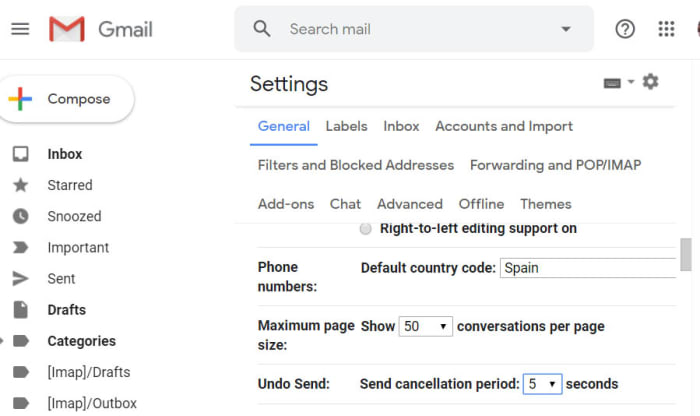
Did you know that you can actually give yourself a short window of opportunity to unsend Gmail messages you’ve sent. This is extremely useful, if you ever find yourself cursing your own existence when you realize you’ve forgotten to mention something important in the email you’ve just sent. To enable the Gmail unsend feature go to Settings then search in the General tab, and then tick the box next to Enable Undo Send. You can also set the time you’ll give yourself to reconsider at 5, 10, 20, or 30 seconds. Don’t forget to hit Save when you’re done and then keep an eye out for the Undo Send option when you send a new message.
Spelling mistakes

Normally email messages are important messages, which means spelling mistakes are a big no no. Fortunately, Gmail has a feature that will highlight any spelling mistakes you’ve made so that you can easily change them. To use this feature all you need to do is click the ellipsis menu icon in the bottom-right corner of your Gmail compose window and hit Check Spelling.
Infinite Gmail accounts
OK, so this trick doesn’t give you an infinite amount of Gmail accounts, but it does give you plenty to play around with, should you need to sign up to an online account more than once. Basically, full stops in your Gmail address don’t count for anything. This means if you send an email to emailaddress@gmail.com and another to email.address@gmail.com both emails will go to the same inbox. This means you can add full stops between every letter of your Gmail address to create a new email you can use to sign up to accounts with. This is also a good way of tracking who is selling your data as you can monitor which accounts have full stops in certain places and then compare that list to the email addresses you receive your spam to.

No comments:
Post a Comment